Sunday, November 20, 2011

A good WebLogic Server Administration book after a very long time!


Recently I was involved in reviewing a book for Packt Publishing - Oracle WebLogic Server 11gR1 PS2: Administration Essentials by Michel Schildmeijer. I am not writing this post because I reviewed this book but I had a chance to read the entire content of this book. This is a book written on the topic of WebLogic Server Administration after a very long time, and a good book too. If you are someone who works on WebLogic Server & JEE technologies you would certainly know about the scarcity of books on WebLogic Server and especially administration. WebLogic Server is being used as a commodity these days for many applications and products built on JEE platforms. Even though it is widely used there aren't many books available for WebLogic Server and the documentation serves as a good reference. But with the growing features on WebLogic Server in the past few years it is hard to learn for any new comers or who are non-developers if you are not following the product for a few years. This book comes as huge gap filler on this area.

The flow of this book would prepare you from planning to production and tuning with a good story line. As WebLogic Server is being used as the application server for almost all the Oracle Fusion Middleware Suite of products Michel not only talks in the perspective of simple JEE applications but also talks about how WebLogic fits in the Fusion Middleware area which is a key benefits that you can ripe from this book. As WebLogic is rich in features especially the administration console, I expected a bunch of screen shots and less narration when I first started reading this book for review. But Michel really balanced between the content and the screenshots, which are presented wherever it is necessary. When I used to go around training customers for BEA and Oracle in WebLogic Server, I was always in need of a white board rather than prepared presentation contents. You can clearly see that need from this book which has many diagrams hand-drawn (Of course using some tool) to explain a lot of topics.

It would say the power of this book is the take off low and fly high approach to many topics, cohesive order of the topics presented to the viewers, compilation of real world experiences and best practices.

This is a good reading if you are a Oracle WebLogic Administrator or any Oracle Fusion Middleware product administrator or trying to become one. So if you are looking to learn or reinforce your knowledge in WebLogic Server this is a good book. And this is available both in printed and electronic format.

Thursday, February 17, 2011

IDE for WLST Scripting - OEPE

In the past many folks asked me about a GUI based tooling support for WLST. Some people managed to use some Jython tools for WLST but it is not straight forward and supported by Oralce. What you need to author WLST scripts more efficiently is a tooling support to develop WLST Scripts. If you are involved in writing a lot of WLST scripts then you will appreciate this initiative.

Oracle just came up with a OEPE (Oracle Enterprise Pack for Eclipse) based tooling for WLST. Some of the features of this tool are:

* WLST/Jython/Python Source Editor
* Syntax highlighting, validation
* Code completion
* WLST Templates
* MBean Navigator for browsing MBeans
* WLST Execution and Console in Eclipse
* WLST integrated Help
* Support for both online and offline modes

Currently anyone who is authoring WLST scripts must refer to the docs for syntax and samples. This will be a good tool for developers so that they can build WLST Scripts within a comfortable environment - Eclipse/OEPE. Also administrators can benefit from the this tool as there are features like templates, code completion etc. The latest release of OEPE 11gR1 (11.1.1.6) comes with this tooling. To find more about the new features of this release see here.

5-Part WLST Best Practices Series

A while ago I wrote a 5-part WLST Best Practices series . Here I am consolidating this post with link to all those 5 posts.

Tuesday, August 3, 2010

Configure Email Notification in WebLogic Server

Introduction

If you are administering applications deployed on WebLogic Server or if you are operations personal responsible to manage a WebLogic Server environment you might have at least asked the following question once:

“Can I setup WebLogic Server to send automatic notifications?”

People always ask me whether WebLogic Server can send automatic notifications. My answer is - "Yes, WebLogic Server had always supported SNMP which can be configured to do standard SNMP Trap notifications to your enterprise monitoring system which can then be sent as an email or pager out to administrators". But the next question is - "I don't want to set up SNMP and I want WebLogic Server to directly send notifications. Can we do that?" Again the answer is - "Yes, starting from version 9.x WebLogic Server supports a new framework called WebLogic Diagnostic Framework - WLDF, which can be used for this purpose". Enterprise monitoring solutions like Oracle Enterprise Manager, HP Open View can monitor WebLogic Server from outside and can trigger notification among various other management and monitoring features. But you can also set up WebLogic Server to directly send many types of notifications. Let us see how to simply set up an email notification with WLS in this article.

Oracle WebLogic Server is Java EE certified application server which is the foundation of many Service Oriented Architecture (SOA) implementations. So many enterprises have their mission-critical applications deployed on WebLogic Server. WebLogic provides a scalable and highly available environment. If you are deploying your mission critical applications on Oracle WebLogic Server you can make use of WebLogic Diagnostic Framework (WLDF) to get diagnostic data from WebLogic Server instances and from applications deployed to them. This will help administrator and system operators to see more information from under the hoods.

This powerful feature will play a significant role in production environment where the application environment should alert operational personal when there is a performance or service level violation. This also eliminates the need to setup custom or third-party monitoring solutions for alerting and notification.

WebLogic Diagnostics Framework – Watch & Notification

One of the features of WLDF is Watch and Notification. You can configure server(s) with watch condition and respective notification(s) to be sent if the watch conditions are met. For example, if the number of request waiting on a JDBC Data Source to grab a connection exceeds 10 and if the free heap in the server is less than 5% then you can trigger a notification. The notification can be one or more of the following types:

  • JMX Notification - Application(s) can register notification listener with WLDF to receive notifications.
  • JMS Notification - WLDF can post a message to JMS destination to alert the situation which can be consumed by a message listener or MDBs to further processing.
  • SNMP Notification - SNMP traps can be sent to alert SNMP managers.
  • SMTP Notification - Email notifications through a Java Mail session.
  • Image Notification - Generates a server image which contains information from different subsystem during the watch.
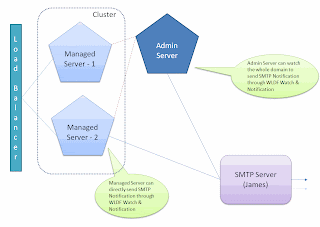
Figure: 1 WebLogic Domain


You can configure Watch conditions on the MBean data, Log messages and WLDF Event data. The notification can be one or more of the above notifications. Since email notification is a common request, I shall illustrate how to setup WLS to send email notification using an open source SMTP server - The Apache Java Enterprise Mail Server (Apache James). To download Apache James, go to - http://james.apache.org/server/ [or] http://people.apache.org/dist/james/server/binaries/. Download and extract the zip file to a convenient location (Eg. /usr/james-2.3.1rcl/). Start the server using run.sh from the bin folder under the JAMES_HOME. Setup a test user in James as per these instructions - http://james.apache.org/server/2.3.1/adding_users.html. The default admin username and password for James are root/root.

Ensure that the James mail server and the administration server for the domain are started. If not, use DOMAIN_HOME/startWebLogic.cmd/sh for starting the administration server of your domain and use JAMES_HOME/bin/run.bat/sh to start James Server. You can use console or WLST to configure the following setting. Let us use the web-based administration console for configuration. Log in to WebLogic Administration Console at - http://localhost:7001/console using an administrative account.

Creating JavaMail Session

First step is to make sure that the underlying resources for the notification are setup. In this case we are going to use SMTP notification so let us first create the Java Mail Session to connect to James Mail Server.

  1. Click "Lock & Edit" to acquire a configuration lock
  2. Expand Services > Mail Sessions and click "New" to create a new Java Mail Session.
  3. Provide Name, JNDI Name and JavaMail Properties as follow:
  4. Name - James-MailSession
  5. JNDI Name - com.test.myjamesMailSession
  6. JavaMail Properties:

mail.transport.protocol=smtp

mail.smtp.host=localhost

mail.smtp.user=admin

mail.smpt.password=password

  1. Click next to target the mail session to a server (Eg. AdminServer or mgd_s1) and click finish.
  2. Activate the changes by clicking "Activate Changes".


Figure: 2 Configuring JavaMail Session


If you are using a different mail server use appropriate information.

Creating WLDF Module

Next step in configuring watch and notification is to create a diagnostic module and target it to the server. You can use console or WLST to create a diagnostic module. The following steps illustrate the steps to create a WLDF system module:

  1. Click "Lock & Edit" to acquire a configuration lock
  2. Click Diagnostics > Diagnostics Modules and click "New" to create a new diagnostics module. Provide a name and description.
  3. Name - Test_WLDF_Module
  4. Description - This is a WLDF module for testing email notifications

  1. Select the newly created module and select targets tab. Select the appropriate server for target as before
  2. Click "Save" and "Activate"


Figure: 3 Configuring Diagnostic Module

Creating Watch & Notification

Each WebLogic Server instance can be configured with only one diagnostic module but you can target the same diagnostic module to multiple servers or clusters. Once the WLDF system module is created and targeted to the appropriate server then watches and notifications can be configured. The following steps illustrate how to create a Watch and a Notification.

To create a watch:

  1. Click "Lock & Edit" to acquire a configuration lock
  2. Navigate to the diagnostic module created above (Test_WLDF_Module) and select the "Watches and Notifications" tab and "Watches" sub-tab (if not already selected)
  3. Click "New" to create a new Watch. Provide the name and select the type as "Collected Metrics" [Select "Collected Metrics" for inspecting Runtime MBean values, "Server Log" to watch log data and "Event Data" to watch instrumented data]
  4. Name - Heap_Watch
  5. Watch Type - Collected Metrics
  6. Enable Watch - Selected
  7. Click "Next"
  8. Click "Add Expressions"
  9. Ensure that "ServerRuntime" is selected and click "Next"
  10. If you are running WebLogic Server on Java HotSpot VM, make sure "Select an MBean Type from the following list" is selected and select "weblogic.management.runtime.JVMRuntimeMBean" and click "Next". If you are using JRockit VM, make sure "Select an MBean Type from the following list" is selected and select "weblogic.management.runtime. JRockitRuntimeMBean" and click "Next".
  11. Select the instance for the appropriate server from the list for "Instance" and click "Next"
  12. For "Message Attribute" select "HeapFreePercent", "<" for "Operator" and type "85" for "Value". Click "Finish" twice to create a Watch
  13. Activate the changes


Figure: 4-a Configuring Watch


Figure: 4-b Configuring Watch


The above watch will trigger the configured notification if the percentage of free heap is less than 90. You could make complex rule expression by combining multiple attributes from different MBean. For now we haven't configured any notification for this watch. We will create the notification and will associate it to the watch in the following steps.

To create a notification:

  1. Click "Lock & Edit" to acquire a configuration lock
  2. Navigate to the diagnostic module created above and select the "Watches and Notifications" tab and "Notification" sub-tab
  3. Click "New" to create a new Notification
  4. Select "SMTP (E-Mail) for Type and click "Next"
  5. Provide a name - James_Email_Notification. Make sure the notification is enabled and click "Next".
  6. Configure the following properties for the "Config Notification - SMTP Properties" page
  7. Mail Session Name - James-MailSession
  8. E-Mail Recipients - admin@localhost

  1. Click "Finish".
  2. Activate the changes


Figure: 5-a Configuring SMTP Notification


Figure: 5-b Configuring SMTP Notification


To associate the watch and the notification:

  1. Click "Lock & Edit" to acquire a configuration lock
  2. Navigate to the diagnostic module created above (Test_WLDF_Module) and select the "Watches and Notifications" tab and "Watches" sub-tab (if not already selected)
  3. Select the watch you created earlier - Heap_Watch
  4. Select the "Notifications" tab and move the "James_Email_Notification" from Available to Chosen
  5. Click "Save"
  6. Select the "Alarms" tab and select "Use an automatic reset alarm". Set the "Automatic reset period" to 6 and click "Save". This will ensure that the notifications are at least 90 seconds apart.
  7. 5. Click "Activate Changes"

Figure: 6-a Associating Watch and Notification

Figure: 6-b Configuring Alarm

As we configured the watch type to be Collected Metrics, the attributes involved in the watch rule will be harvested and tested for watch rule expression(s). The default sampling period for the harvester is 300,000 milliseconds (or 5 minutes). So the time between samples will be 5 minutes. To change the sampling period for metrics collection:

  1. Click "Lock & Edit" to acquire a configuration lock
  2. Navigate to the diagnostic module created above (Test_WLDF_Module) and select the "Collected Metrics" tab
  3. Ensure that "Enabled' check-box is selected
  4. Change the "Sampling Period" as "120000" so that it will collect samples once every two minute


Figure: 7 Configuring Sampling Period


To receive the notifications sent by WebLogic Server as emails, install and configure an email client like Mozilla Thunderbird. The following is an example of the email received from WebLogic Server:

Using WLST

The configurations that are illustrated using Administration Console here can also be done using WLST. The following script is an example WLST script to configure a Javamail session, WLDF Module, Watch and Notification:


#Connect to the admin sever
connect('weblogic','Welcome1','t3://localhost:7001')

#Start a change session
edit()
startEdit()
cd('/')

#Create and configure a Javamail session
cmo.createMailSession('James-MailSession')
cd('/MailSessions/James-MailSession')
cmo.setJNDIName('com.test.myjamesMailSession')
cmo.setProperties({mail.smtp.user=user;, mail.smpt.password=password;, mail.smtp.host=localhost;, mail.transport.protocol=smtp;})
set('Targets',jarray.array([ObjectName('com.bea:Name=AdminServer,Type=Server')], ObjectName))

#Create and configure a WLDF Module
cd('/')
cmo.createWLDFSystemResource('Test_WLDF_Module')
cd('/SystemResources/Test_WLDF_Module')
cmo.setDescription('This is a WLDF module for testing email notifications.')
set('Targets',jarray.array([ObjectName('com.bea:Name=AdminServer,Type=Server')], ObjectName))

#Create and configure a WLDF Watch
cd('/WLDFSystemResources/Test_WLDF_Module/WLDFResource/Test_WLDF_Module/WatchNotification/Test_WLDF_Module')
cmo.createWatch('Heap_Watch')
cd('/WLDFSystemResources/Test_WLDF_Module/WLDFResource/Test_WLDF_Module/WatchNotification/Test_WLDF_Module/Watches/Heap_Watch')
cmo.setRuleType('Harvester')
cmo.setEnabled(true)
#For HotSpot VM
#cmo.setRuleExpression('(${ServerRuntime//[weblogic.management.runtime.JVMRuntimeMBean]com.bea:Name=AdminServer,ServerRuntime=AdminServer,Type=JVMRuntime//HeapFreePercent} < 85)')
#For JRockit VM
cmo.setRuleExpression('(${ServerRuntime//[weblogic.management.runtime.JRockitRuntimeMBean]com.bea:Name=AdminServer,ServerRuntime=AdminServer,Type=JRockitRuntimeMBean//HeapFreePercent} < 85)')
cmo.setAlarmType(None)

#Create and configure a WLDF SMTP Notification
cd('/WLDFSystemResources/Test_WLDF_Module/WLDFResource/Test_WLDF_Module/WatchNotification/Test_WLDF_Module')
cmo.createSMTPNotification('James_Email_Notification')
cd('/WLDFSystemResources/Test_WLDF_Module/WLDFResource/Test_WLDF_Module/WatchNotification/Test_WLDF_Module/SMTPNotifications/James_Email_Notification')
cmo.setEnabled(true)
cmo.setMailSessionJNDIName('com.test.myjamesMailSession')
set('Recipients',jarray.array([String('admin@localhost')], String))
cmo.setSubject(None)
cmo.setBody(None)

#Associate the watch and notification
cd('/WLDFSystemResources/Test_WLDF_Module/WLDFResource/Test_WLDF_Module/WatchNotification/Test_WLDF_Module/Watches/Heap_Watch')
set('Notifications',jarray.array([ObjectName('com.bea:Name=James_Email_Notification,Type=weblogic.diagnostics.descriptor.WLDFSMTPNotificationBean,Parent=[testdomain]/WLDFSystemResources[Test_WLDF_Module],Path=WLDFResource[Test_WLDF_Module]/WatchNotification[Test_WLDF_Module]/SMTPNotifications[James_Email_Notification]')], ObjectName))
cmo.setAlarmType('AutomaticReset')
cmo.setAlarmResetPeriod(60000)

#Set the sampling period
cd('/WLDFSystemResources/Test_WLDF_Module/WLDFResource/Test_WLDF_Module/Harvester/Test_WLDF_Module')
cmo.setSamplePeriod(120000)
cmo.setEnabled(true)

#Activate the changes
save()
activate()

#Exit
exit()

Thursday, July 1, 2010

Using WLST Script To List Messages From A JMS Queue

WebLogic Server added support for Runtime Message Management for Destination hosted on WebLogic JMS Servers in WLS 9.0. It will an exciting feature if you are currently in WLS 8.1 or new to WLS. Now you can administratively view and browse all messages, and manipulate most messages in a running JMS server, by using the Administration Console or WLS public runtime APIs. Once I start getting excited about this feature to customer the very next logical question from administrators are can I script this? The answer is obviously, Yes. Java or WLST is your answer. If you are a developer and there is a requirement to provide a Java/JEE application for your administrators or business users to view or browse the messages then Java will be your option. For administrators who are non-Java, there are MBeans like JMSDestinationRuntimeMBean and JMSDurableSubscriberRuntimeMBean that you can use from WLST to script any of the message managment features. Needless to say if there are existing Java implementation for message management then you can simply import and use them within WLST as well. But WLST scripts are natural choice for administrators.

So I started out writing a simple WLST script that can list all the messages from a given JMS Queue. The script is written to list all the headers and properties along with the body. I have made enough comments in the script to explain the different steps. But the high-level steps are:
  1. Connect to the server
  2. Get to the JMSDestinationRuntimeMBean
  3. Get the cursor to find the number of messages
  4. Get the messages without body to find the cursor and the Message ID
  5. Get the message with body using the Message ID
  6. Print the Headers, Properties and Body (or) Pay Load of the Message

A key information to note here is if you have any Object Messages in the Queue then those classes should be added to the Java Classpath before you execute this WLST Script. I haven't implemented any exception handling logic in my script whereas handling exceptions are best practices and you might want to refer to my other entries regarding that information.


#Import necessary classes/interfaces
from weblogic.jms.extensions import JMSMessageInfo
from javax.jms import TextMessage
from javax.jms import ObjectMessage

#Define constants
url='t3://localhost:7001'
username='weblogic'
password='weblogic1'
jmsservername='test-jms-server'
jmsmodulename='test-jms-module'
jmsdestname='test-queue'

#Connect
connect(username,password,url)

#Switch to the server runtime tree
serverRuntime()

#Navigate to the JMS Destination Runtime MBean
cd('JMSRuntime/' + serverName + '.jms/JMSServers/' + jmsservername)
cd('Destinations/' + jmsmodulename + '!' + jmsdestname)

#Get the cursor (JMSMessageCursorRuntimeMBean) to browse the messages - No selector & No time out
cursor = cmo.getMessages('',0)

#Determine the number of messages in the destination
cursorsize = cmo.getCursorSize(cursor)
print '------------------------------------------'
print 'Total Number of Messages -> ', cursorsize
print '------------------------------------------'

#Get all the messages as an array of javax.management.openmbean.CompositeData
messages = cmo.getNext(cursor, cursorsize)

#Loop through the array of messages to print
for message in messages:

#Create WebLogic JMSMessageInfo to get Message ID
jmsmsginfo = JMSMessageInfo(message)
wlmsg = jmsmsginfo.getMessage()
wlmsgid = wlmsg.getJMSMessageID()

#Get Message with body
fullcursormsg = cmo.getMessage(cursor,wlmsgid)
fulljmsmsginfo = JMSMessageInfo(fullcursormsg)
handle = fulljmsmsginfo.getHandle()
compdata = cmo.getMessage(cursor, handle)
msgwithbody = JMSMessageInfo(compdata)

#Print Key Message Headers
print 'Message ID - ' + msgwithbody.getMessage().getJMSMessageID()
print 'Message Priority -' , msgwithbody.getMessage().getJMSPriority()
if msgwithbody.getMessage().getJMSRedelivered() == 0:
redeliv = 'false'
else:
redeliv = 'true'
print 'Message Redelivered - ' + redeliv
print 'Message TimeStamp -' , msgwithbody.getMessage().getJMSTimestamp()
print 'Message DeliveryMode -' , msgwithbody.getMessage().getJMSDeliveryMode()

#Print Message Properties
prop_enum = msgwithbody.getMessage().getPropertyNames()
print ' '
print 'Message Properties :'
print ' '
for prop in prop_enum:
print prop + ' - > ' + msgwithbody.getMessage().getStringProperty(prop)

#Print Message Body
fullwlmsg = fulljmsmsginfo.getMessage()
print ' '
print 'Message Body :'
print ' '
if isinstance(fullwlmsg, TextMessage):
print fullwlmsg.getText()
else:
if isinstance(fullwlmsg, ObjectMessage):
print fullwlmsg.getObject()
else:
print '***Not a Text or Object Message***'
print fullwlmsg.toString()
print ' '
print '--------------------------------------------------------------'
print ' '

#Close cursor as No Time Out specified - Best practice
cmo.closeCursor(cursor)

#Disconnect & Exit
disconnect()
exit()

Wednesday, June 16, 2010

Running OS Commands From WLST


If you spend a lot of time with WLST in the interactive mode, I am sure you have opened another command prompt/shell to check something at the OS file system level. If you wonder whether can execute an OS command from within WLST prompt, the answer is "Yes". This is very convenient similar to how you can execute OS commands from within "Vi" editor.

In fact this feature is not from WLST but from underlying Jython. There is "os" module in Jython that provides a unified interface to a number of operating system functions. There is "system" function in the "os" module that can take a OS command as a string input and returns either "0" or "1" depends on whether the command was successful or failed. So this feature can also be used with scripting mode where the return code can be verified for further processing in the script.

For eg. os.system(r'dir c:\bea') can list the contents of the bea folder under c drive. Notice the use of the preceding 'r' for escaping the entire string.

Thursday, April 22, 2010

Effective HTTP Session Monitoring in WebLogic Server With monitoring-attribute-name

Monitoring HTTP Session on WebLogic Server is one of the common task for administrators when monitoring web applications for performance or for activity or usage. Web application modules deployed to WebLogic Server maintains a "monitoring ID", which although looks like a session ID is not the same as the real session ID. You can use the monitoring id to identify the session uniquely. Monitoring IDs are not same as session IDs for security reason. You can turn on session debugging which prints session IDs to the log but these will not match what you see in the console/WLST. Monitoring ids are randomly generated by default. You can set a value to this monitoring id through a session attribute using "monitoring-attribute-name" element in session-descriptor of the weblogic.xml. This can simplify the task of monitoring sessions for administrators in production environment.

For e.g. if you set the "monitoring-attribute-name" to be "user-name" then it will use the string value of the session attribute named "user-name" as the value for Monitoring ID instead of the randomly generated value. When getMonitoringID(sessionid) method is called on the ServletSession, it will return session.getAttribute("user-name").toString().


weblogic.xml
-------------
...

600
user-name


true

...


So if you have an attribute within the HTTP Session which can identify the user/session uniquely then you can use that as the monitoring id. This is the recommended approach to track/monitor sessions instead of the session id which is an internal attribute. If you don't set the monitoring-attribute-name, WLS will randomly generate a monitoring id for each session. When developers set the monitoring-attribute-name, this will help administrator to associate sessions to the actual users.

Sample WLST script to get all the monitoring ids (for the respective session) as an array:


...
AppName = 'MedRecEar'
TargetServerName = 'MedRecSvr1'
WebCompName = 'MedRecWar'
serverRuntime()
cd('ApplicationRuntimes/' + AppName + '/ComponentRuntimes/' + TargetServerName + '_/' + WebCompName) MIDs = mon_ids = cmo.getServletSessionsMonitoringIds()
...


In the above example, the variable mon_ids will contain an array of monitoring ids as strings. Using these monitoring ids information about the individual session can be obtained from other operations like:
- getSessionLastAccessedTime
- getSessionMaxInactiveInterval

One can even invalidate the session using the following opertion:
- invalidateServletSession

This will give an option for administrators to cleanup or delete stale sessions if there are any. These are the only information that are exposed for sessions unless you want to use the deprecated ServletSessionRuntimeMBeans. This is an old MBean that has more methods/operations. Admin console doesn't expose the session id for security reason. If you need access to all the session ids for some reason then you have to use this deprecated ServletSessionRuntimeMBeans. You can get all the ServletSessionRuntimeMBeans as an array from a WebAppComponentRuntimeMBean using a deprecated getServletSessions() method. WLST script to access the above mentioned deprecated ServletSessionRuntimeMBeans:


...
AppName = 'MedRecEar'
TargetServerName = 'MedRecSvr1'
WebCompName = 'MedRecWar'
serverRuntime()
cd('ApplicationRuntimes/' + AppName + '/ComponentRuntimes/' + TargetServerName + '_/' + WebCompName + '/ServletSessions')
ls()
....


The above ls() command will list you all the sessions with session id as their name. Even though this post has lot of information on how to monitor sessions and make use of the monitoring-attribute-name, I shall write another to provide a complete example of how to use this.

Also see my other post on how to monitor HTTP sessions from the administration console and WLST.